
At a glance
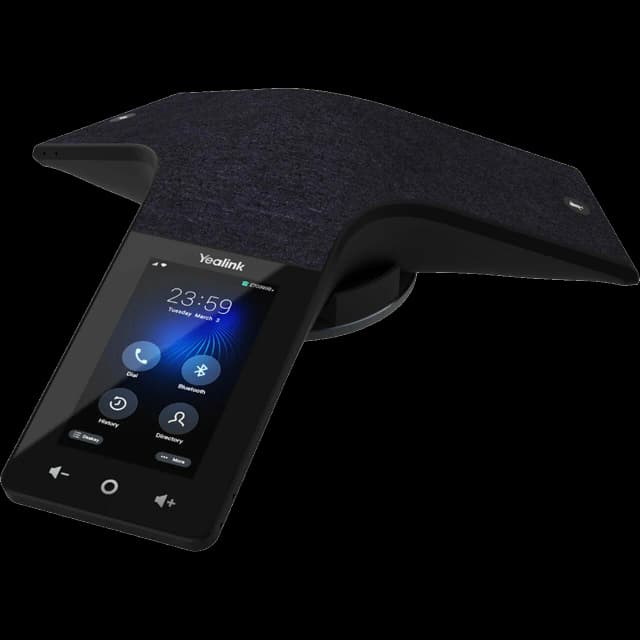
- Best for
- Conference rooms with 16+ seats
- Highlights
- 4" touch screen
- DECT/wireless, 15 hr talk time
- Full duplex, noise filtering
See the Yealink CP935W Conference Phone's full specs and prices
Quick start
Get your Yealink CP935W Conference Phone up and running in minutes.
Unbox and connect
Remove the conference phone, power adapter, and Ethernet cable from the box.
Place the phone in the center of your conference table.
Connect the Ethernet cable from the phone to your wall jack or switch.
Plug in the power adapter (the CP935W uses both PoE and AC power).
Initial setup
The 4" touchscreen will display the Yealink logo during boot.
Auto-provisioning from SimpleFiber takes 1-2 minutes.
Your conference line and extension will appear on screen.
Make a test call to verify the full-duplex speakerphone quality.
DECT wireless option
The CP935W can connect wirelessly via DECT to a W70B base station.
This allows you to place the conference phone anywhere in the room without running an Ethernet cable.
If using DECT, pair it to your base: Menu > Settings > DECT > Register.
Key features
4" touchscreen
- Tap to navigate menus, dial numbers, and manage calls.
- The screen shows caller ID, call duration, and participant info during conferences.
- Swipe for contacts and call history.
Full duplex & noise filtering
- Full duplex means both parties can speak simultaneously without cutting out.
- Noise filtering reduces background noise from the conference room.
- Optimized for rooms with 16+ seats — everyone will be heard clearly.
15-hour talk time (wireless)
- When connected via DECT, the CP935W has a 15-hour talk battery.
- This means you can move it between conference rooms without cables.
- Charge via the included cradle or USB-C cable.
Common tasks
Step-by-step instructions for the most common phone operations.
Start a conference call
Tap the Dial pad on the touchscreen and enter the first number.
Once connected, tap the Conference button.
Dial the next participant and tap Merge when they answer.
Repeat for additional participants.
Mute/unmute
Tap the Mute button on the touchscreen or the physical mute button on the phone.
The LED ring turns red when muted.
Tap again to unmute.
Adjust volume
Use the volume buttons on the side of the phone.
Volume adjusts in real-time during calls.
Common issues & fixes
Try these solutions before calling support.
No dial tone / phone won't register
Check that the Ethernet cable is firmly connected to the LAN port on the phone and the wall jack or switch. Verify the phone has power (screen should be lit). Try rebooting the phone by unplugging the Ethernet cable for 10 seconds and reconnecting. If the phone still shows 'No Service' or fails to register, contact SimpleFiber support — we may need to re-provision your phone.
Poor call quality / choppy audio
First, run a speed test at fast.com on a computer connected to the same network. If speeds are low, the issue may be your internet connection. Make sure the phone is connected via Ethernet (not WiFi) for best quality. Check that no one is running large downloads or uploads during calls. If the issue persists, contact us — we can prioritize voice traffic on your connection.
Can't hear the other party / one-way audio
Reboot the phone by unplugging the Ethernet cable for 10 seconds. Check that you're not on mute (mute icon on screen). If using a headset, make sure it's properly connected and the audio path is set to headset. If the problem continues, contact support — it may be a network or firewall issue.
Phone keeps rebooting or restarting
Check your Ethernet cable — a loose or damaged cable can cause power cycling on PoE phones. If using a power adapter, make sure it's the original Yealink adapter (third-party adapters can cause issues). If connected through a PoE switch, verify the switch provides enough power. Contact support if reboots continue.
Voicemail not working
Try dialing 5001 directly to reach your voicemail. Make sure your voicemail PIN is set (the default is 1234). If calls aren't going to voicemail, make sure call forwarding isn't on — dial *73 to disable it — or review your answering rules at talk.simplefiber.com. Contact support if you need your voicemail box reset.
Audio cutting out during conference
Make sure the phone is in the center of the table, away from walls and vents. Check that no one is placing papers or objects over the microphones. If using DECT, ensure you're within range of the base station.
Still need help?
Our support team is here for you. We'll get your phone working right.