
At a glance
- Best for
- Conference rooms with 16+ seats
- Highlights
- 4" touch screen
- DECT/wireless, 15 hr talk time
- Full duplex, noise filtering
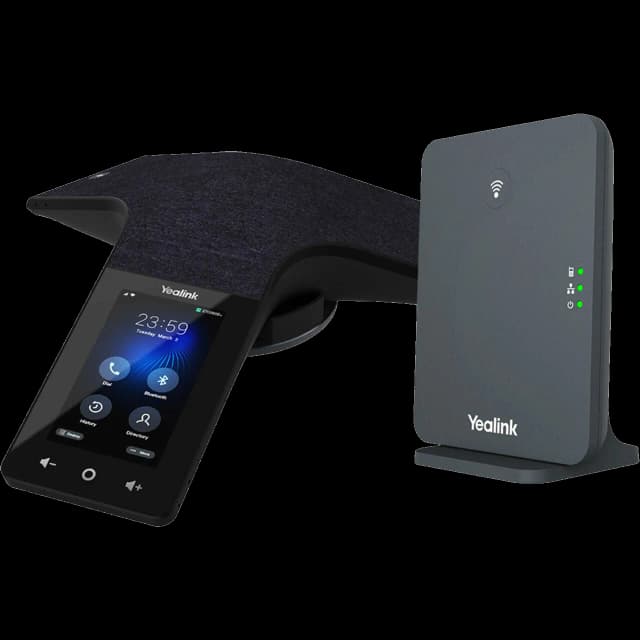
- Includes DECT base station
See the Yealink CP935W Conference Bundle's full specs and prices
Quick start
Get your Yealink CP935W Conference Bundle up and running in minutes.
Unbox and connect
This bundle includes the CP935W conference phone AND a W70B DECT base station.
First, set up the base station: connect Ethernet cable to network, plug in power adapter.
Wait for the base LED to turn green (1-2 minutes for provisioning).
Place the CP935W conference phone on the conference table — it connects to the base wirelessly via DECT.
Pair phone to base
On the CP935W touchscreen, go to Menu > Settings > DECT > Register.
Press the pairing button on the base station for 5 seconds.
The phone will find the base and pair automatically.
Once paired, your conference line appears on screen.
Test the setup
Make a test call to verify audio quality.
Walk the phone around the room to verify DECT range.
The base station provides up to 164ft indoor / 984ft outdoor range.
Key features
Wireless conference phone
- No Ethernet cable needed for the conference phone — it connects to the base via DECT.
- Move the phone between rooms as needed.
- 15-hour talk time battery when running wireless.
Full duplex & noise filtering
- Same premium audio as the standalone CP935W.
- Full duplex speakerphone with noise filtering.
- Covers conference rooms with 16+ seats.
Common tasks
Step-by-step instructions for the most common phone operations.
Start a conference call
Tap the Dial pad, enter the first number.
Once connected, tap Conference, dial the next participant, tap Merge.
Repeat for additional participants.
Mute/unmute
Tap Mute on the touchscreen. LED ring turns red.
Tap again to unmute.
Move between rooms
Simply pick up the phone and move it — the DECT connection stays active within range.
No need to reconnect cables or re-register.
Charge the phone when not in use for maximum battery life.
Common issues & fixes
Try these solutions before calling support.
No dial tone / phone won't register
Check that the Ethernet cable is firmly connected to the LAN port on the phone and the wall jack or switch. Verify the phone has power (screen should be lit). Try rebooting the phone by unplugging the Ethernet cable for 10 seconds and reconnecting. If the phone still shows 'No Service' or fails to register, contact SimpleFiber support — we may need to re-provision your phone.
Poor call quality / choppy audio
First, run a speed test at fast.com on a computer connected to the same network. If speeds are low, the issue may be your internet connection. Make sure the phone is connected via Ethernet (not WiFi) for best quality. Check that no one is running large downloads or uploads during calls. If the issue persists, contact us — we can prioritize voice traffic on your connection.
Can't hear the other party / one-way audio
Reboot the phone by unplugging the Ethernet cable for 10 seconds. Check that you're not on mute (mute icon on screen). If using a headset, make sure it's properly connected and the audio path is set to headset. If the problem continues, contact support — it may be a network or firewall issue.
Phone keeps rebooting or restarting
Check your Ethernet cable — a loose or damaged cable can cause power cycling on PoE phones. If using a power adapter, make sure it's the original Yealink adapter (third-party adapters can cause issues). If connected through a PoE switch, verify the switch provides enough power. Contact support if reboots continue.
Voicemail not working
Try dialing 5001 directly to reach your voicemail. Make sure your voicemail PIN is set (the default is 1234). If calls aren't going to voicemail, make sure call forwarding isn't on — dial *73 to disable it — or review your answering rules at talk.simplefiber.com. Contact support if you need your voicemail box reset.
Phone disconnects from base
Check the base station power and network connection. Make sure you're within 164ft of the base. Re-pair if needed: Menu > Settings > DECT > Register.
Still need help?
Our support team is here for you. We'll get your phone working right.