
At a glance
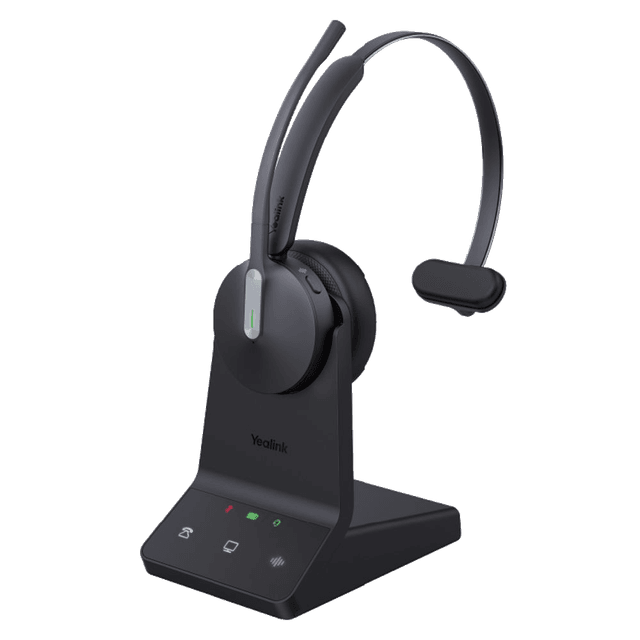
- Best for
- Office and call centers
- Highlights
- 32 hour talk time
- Up to 450ft range
- Active noise cancellation
Quick start
Get your Yealink WH64 Mono Headset up and running in minutes.
Unbox and connect
Remove the headset, charging base/stand, USB dongle, and cables from the box.
Place the charging base on your desk near your phone.
Connect the USB dongle to the USB port on your Yealink desk phone (or PC for softphone use).
Place the headset on the charging base — the LED will indicate charging status.
Pair the headset
The headset automatically pairs with its USB dongle — no manual pairing needed.
The LED on the headset turns solid when connected.
If the headset doesn't connect, press and hold the multi-function button for 5 seconds to enter pairing mode, then re-insert the USB dongle.
Set audio path on your phone
On your Yealink desk phone, go to Menu > Basic Settings > Headset.
Make sure Headset is enabled.
Press the Headset button on your desk phone to switch audio to/from the headset.
Key features
Active noise cancellation
- ANC reduces background noise so callers hear you clearly.
- Works automatically when the headset is in use.
- Ideal for open-plan offices and call centers.
32-hour talk time & 450ft range
- Up to 32 hours of talk time on a single charge.
- Roam up to 450 feet from the base station while on a call.
- Place the headset on the charging base between calls to keep it charged.
Common tasks
Step-by-step instructions for the most common phone operations.
Answer and end calls
Press the multi-function button on the headset to answer an incoming call.
Press it again to end the call.
You can also press the Headset button on your desk phone.
Mute/unmute
Press the Mute button on the headset boom arm.
The LED turns red when muted.
Press again to unmute.
Adjust volume
Use the volume up/down buttons on the headset.
You can also adjust volume from your desk phone during a call.
Common issues & fixes
Try these solutions before calling support.
Headset not connecting to phone
Make sure the USB dongle is firmly plugged into the phone's USB port. Try a different USB port if available. Press and hold the multi-function button for 5 seconds to re-enter pairing mode. Restart the desk phone if the issue persists.
Poor audio quality / static
Make sure you're within 450ft of the charging base. Move away from other wireless devices that may cause interference (WiFi routers, microwaves). Check that the headset firmware is up to date — contact SimpleFiber support for help.
Headset not charging
Clean the charging contacts on both the headset and base with a dry cloth. Make sure the headset is properly seated on the base. Try a different USB cable or power source for the base.
Still need help?
Our support team is here for you. We'll get your phone working right.