
At a glance
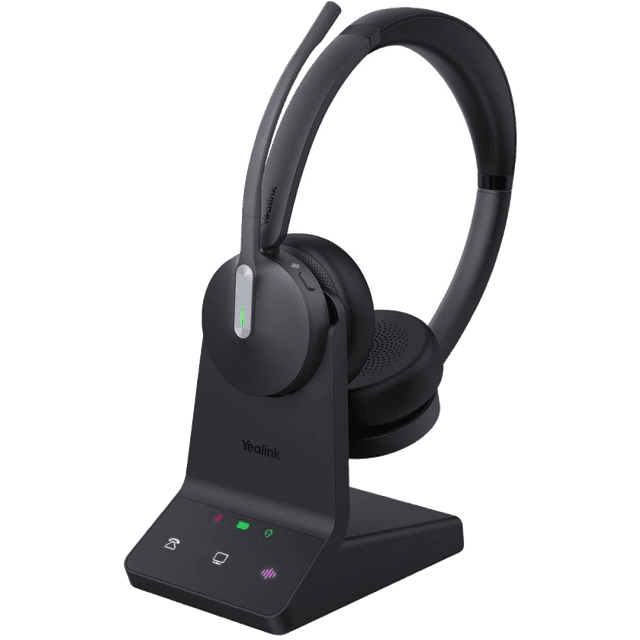
- Best for
- Office and call centers
- Highlights
- 32 hour talk time
- Up to 450ft range
- Active noise cancellation
Quick start
Get your Yealink WH64 Dual Headset up and running in minutes.
Unbox and connect
Remove the headset, charging base/stand, USB dongle, and cables from the box.
Place the charging base on your desk near your phone.
Connect the USB dongle to the USB port on your Yealink desk phone.
Place the headset on the charging base to begin charging.
Pair the headset
The headset automatically pairs with the USB dongle.
The LED turns solid when connected.
The dual-ear design provides better noise isolation than the mono version.
Set audio path on your phone
On your Yealink desk phone: Menu > Basic Settings > Headset > Enable.
Press the Headset button on your desk phone to switch audio.
Key features
Dual-ear noise isolation
- Both ears are covered, blocking out ambient noise from both sides.
- Combined with ANC, this provides the best noise isolation for busy environments.
- Ideal for call centers, shared offices, and high-noise environments.
Active noise cancellation
- ANC in the microphone boom ensures callers hear you clearly.
- Works automatically during calls.
32-hour talk time & 450ft range
- Same battery life and range as the mono model.
- Place on the charging base between calls.
Common tasks
Step-by-step instructions for the most common phone operations.
Answer and end calls
Press the multi-function button on the headset to answer.
Press again to end the call.
Mute/unmute
Press the Mute button on the boom arm. LED turns red when muted.
Adjust volume
Use the volume buttons on the headset or the desk phone controls.
Common issues & fixes
Try these solutions before calling support.
Headset not connecting to phone
Make sure the USB dongle is firmly plugged in. Try a different USB port. Press and hold the multi-function button for 5 seconds to re-pair.
Poor audio quality / static
Stay within 450ft of the base. Move away from other wireless devices. Contact support for firmware updates.
Headset not charging
Clean the charging contacts. Ensure the headset is properly seated on the base.
Still need help?
Our support team is here for you. We'll get your phone working right.