
At a glance
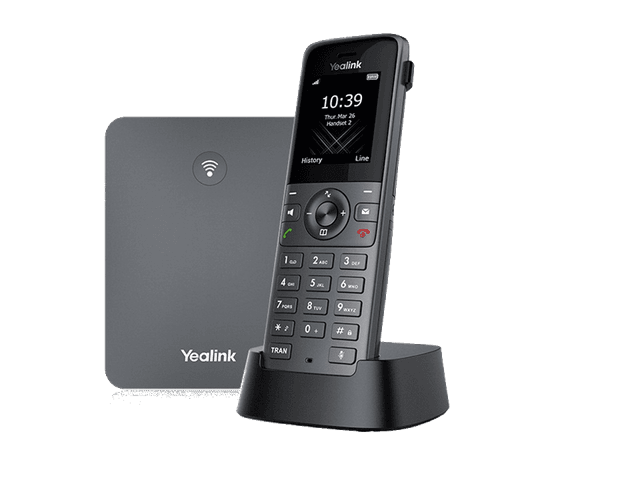
- Best for
- Office users/retail shops
- Highlights
- 1.8" color screen
- Noise cancellation
- 35 hour talk time
Quick start
Get your Yealink W73P Bundle up and running in minutes.
Unbox and connect the base station
Remove the base station (W70B), cordless handset (W73H), charging cradle, Ethernet cable, and power adapter from the box.
Connect the Ethernet cable from the base station to your wall jack or network switch.
Plug the power adapter into the base station. The LED on the base will turn solid green when ready.
The base station auto-provisions from SimpleFiber's server (1-2 minutes).
Pair the handset
Place the handset on the charging cradle to charge it (initial charge: ~3 hours).
The handset should auto-pair with the base station. If not, press and hold the pairing button on the base for 5 seconds.
On the handset, go to Settings > Registration > Register Handset.
Once paired, your extension and name will appear on the handset screen.
Test your phone
Pick up the handset and press the Talk button to get a dial tone.
Dial another extension or your cell phone to test audio quality.
Walk around your office to test range — the W73P covers up to 164ft indoors / 984ft outdoors.
Key features
1.8" color screen
- Navigate menus using the directional pad on the handset.
- The home screen shows your line status, signal strength, and battery level.
- Adjust display settings: Menu > Settings > Display.
Noise cancellation
- Built-in noise cancellation reduces background noise during calls.
- Works automatically — no configuration needed.
- Ideal for retail shops, open offices, and other noisy environments.
35-hour talk time
- The W73H handset provides up to 35 hours of talk time on a single charge.
- Standby time is up to 400 hours.
- Place the handset in the charging cradle when not in use to keep it topped off.
- The battery icon on screen shows current charge level.
Common tasks
Step-by-step instructions for the most common phone operations.
Check & set up voicemail
Press the Message button on the handset, or dial 5001, then follow the voice prompts.
The default voicemail PIN is 1234 — you'll be prompted to change it and record your greeting.
Check voicemail remotely: call your own extension until it reaches voicemail, press the * key, then enter your PIN followed by the # key.
Prefer the web? Log into talk.simplefiber.com and open the Messages tab to listen to, download, delete, or forward your messages.
Send voicemail to email
Voicemails can be emailed to you so you can listen on your computer or smartphone.
Turn it on in the portal at talk.simplefiber.com under Voicemail > Email Notification.
We recommend the "Send w/ attachment, move to trash" option so each voicemail emails to you and clears off the handset.
Transfer a call
Blind (unannounced): press the Transfer button, enter the extension or a 10-digit number, then press Transfer again or hang up to complete.
Attended (announced): press Transfer, enter the number, wait for them to answer so you can announce the call, then press Transfer again or hang up to complete.
Transfer straight to voicemail: press Transfer, dial 03 followed by the extension, then press Transfer again.
Set up call forwarding
To turn forwarding on, dial *72 followed by the extension or remote number you want your calls sent to. You'll hear "Forwarding is now active."
To turn forwarding off, dial *73. You'll hear "Forwarding is now disabled."
To forward your company's main number, log into the portal at talk.simplefiber.com — Manager permissions are required.
Park & pick up a call
Park is system-wide — a call parked from one phone can be picked up at any phone in your office.
To park: press the * (asterisk) button three times. The system tells you which park queue the call is in.
To pick up: from any phone, dial the park queue extension (701, 702, or 703) and press Send.
Tip: save the park extensions (701–703) in your handset directory so you can pick up a parked call with one tap.
Conference / 3-way call
While on an active call, press the Conference button.
Dial the extension or 10-digit number you want to add and wait for them to answer.
Press Conference again to join everyone into one call.
Intercom
Two-way intercom: dial 08 followed by the extension, then press Send. Both phones beep and connect for a quick two-way conversation.
Common issues & fixes
Try these solutions before calling support.
No dial tone / phone won't register
Check that the Ethernet cable is firmly connected to the LAN port on the phone and the wall jack or switch. Verify the phone has power (screen should be lit). Try rebooting the phone by unplugging the Ethernet cable for 10 seconds and reconnecting. If the phone still shows 'No Service' or fails to register, contact SimpleFiber support — we may need to re-provision your phone.
Poor call quality / choppy audio
First, run a speed test at fast.com on a computer connected to the same network. If speeds are low, the issue may be your internet connection. Make sure the phone is connected via Ethernet (not WiFi) for best quality. Check that no one is running large downloads or uploads during calls. If the issue persists, contact us — we can prioritize voice traffic on your connection.
Can't hear the other party / one-way audio
Reboot the phone by unplugging the Ethernet cable for 10 seconds. Check that you're not on mute (mute icon on screen). If using a headset, make sure it's properly connected and the audio path is set to headset. If the problem continues, contact support — it may be a network or firewall issue.
Phone keeps rebooting or restarting
Check your Ethernet cable — a loose or damaged cable can cause power cycling on PoE phones. If using a power adapter, make sure it's the original Yealink adapter (third-party adapters can cause issues). If connected through a PoE switch, verify the switch provides enough power. Contact support if reboots continue.
Voicemail not working
Try dialing 5001 directly to reach your voicemail. Make sure your voicemail PIN is set (the default is 1234). If calls aren't going to voicemail, make sure call forwarding isn't on — dial *73 to disable it — or review your answering rules at talk.simplefiber.com. Contact support if you need your voicemail box reset.
Handset says 'Searching' or won't pair with base
Press and hold the pairing button on the base station for 5 seconds until the LED blinks. On the handset, go to Settings > Registration > Register Handset. Make sure you're within range of the base (164ft indoors). If it still won't pair, power cycle both the base and handset.
Poor range / signal drops
Move the base station to a central location, away from metal objects and other electronics. The W70B base supports up to 164ft indoors. If you need more range, you can add Yealink DECT repeaters (RT30) — contact us for details.
Related guides
Yealink W79P Bundle
Best for industrial/warehouse spaces
View guideYealink W73H
Best for office users/retail shops
View guideYealink W59R Pro
Best for industrial/warehouse spaces
View guideCordless phone features user guide
Voicemail, transfers, call forwarding, park, and more for SimpleFiber cordless phones (W73P and other W-series handsets).
View guide
Still need help?
Our support team is here for you. We'll get your phone working right.